How Can I Add Sources On Matters.Cloud
Introduction
Matters.Cloud provides a way to track referral information for your organization and clients. Using the Sources feature, you can record who referred a client to you, whether an individual or another company.
Steps to Add Sources
- On your Dashboard, click on Setup in the menu.
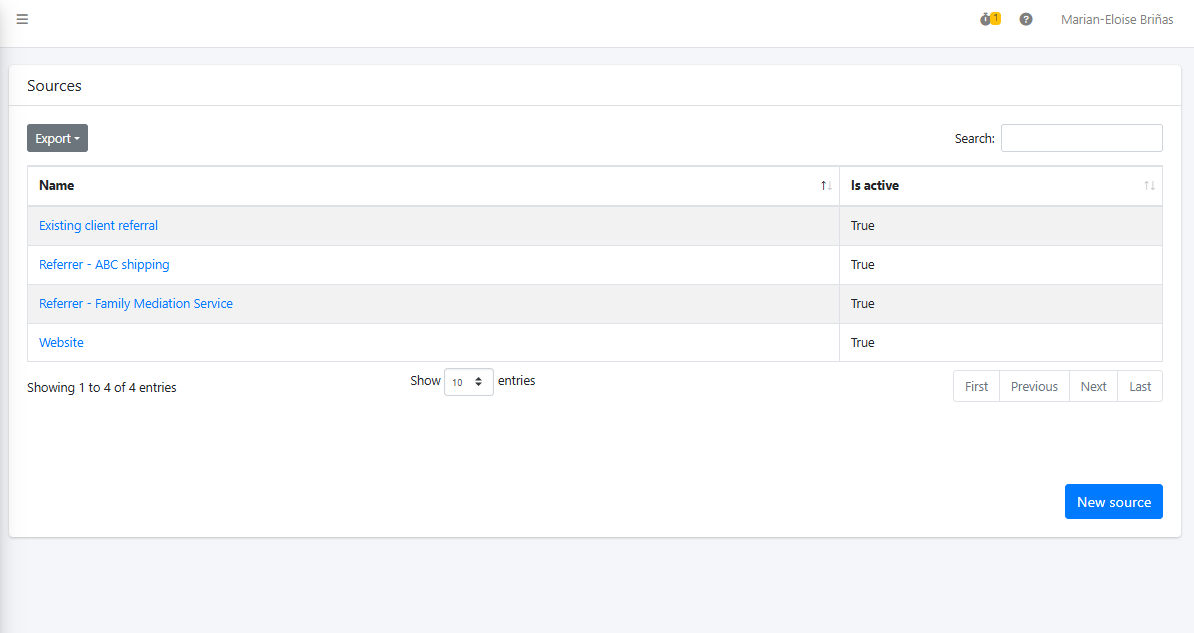
- Under Setup, click on Contacts and then select Sources.
- Click on New source. Here, you can customize the field to specify whether the referral is from a person or an organization.
- Enter the necessary information, and click Submit.
Steps to Assign a Source to a Client
- On your Dashboard, go to Contacts.
- Click on New (located at the upper-right of the screen) and select New client.
- In the Source field, click the dropdown menu.
- Select the relevant source from the list of previously added sources.
- Alternatively, you can add a new source during the creation of a client, contact, or organisation by clicking New source within the Source field. Enter the Source name, set Is active to True, and click Submit.
- Once the source has been selected or created, click Submit to save the changes.
Matters.Cloud provides powerful reporting tools that enable firms to accurately track and quantify the value of business received from various sources. By linking matters to their origin, whether through referrals, marketing campaigns, or other channels, firms can gain insights into the revenue generated from each source. These reports offer detailed performance metrics, empowering firms to make data-driven decisions and optimize their business development strategies for greater profitability. Key features include:
- Source Tracking: Firms can track where each matter originates (e.g., referrals, marketing).
- Revenue Attribution: Financial data is linked to the source of each matter.
- Performance Reports: Customizable reports show the value of business from different sources.
- Conversion Metrics: Firms can track conversion rates and client quality per source.
- ROI Analysis: Evaluate the return on investment for each marketing or referral source.
Steps to add Fees billed by source report in the Dashboard
- On your Dashboard, click Edit dashboard (located in the upper-right corner).
- Use the search bar or scroll through the available list to locate the Fees billed by source tile.
- Drag and drop the tile into your preferred location: Left Column, Right Column, or Footer Section.
- The Fees billed by source report will now be available on your Dashboard.

For further information on adding and managing dashboard tiles, please refer to the following article: Managing Dashboards in Matters.Cloud.
Referral Sources - Questions & Answers
Question: Can I add multiple referral sources for a single client?
Answer: Currently, you can only assign one referral source per client. If a client has been referred by multiple sources, you can record the primary referral or use additional notes to mention others.
Answer: Currently, you can only assign one referral source per client. If a client has been referred by multiple sources, you can record the primary referral or use additional notes to mention others.
Question: Can I edit or delete a referral source after it’s been added?
Answer: Yes, you can edit or delete a referral source by going to the Sources section in Contacts, finding the referral, and selecting Edit or Delete.
Question: Can I delete a referral source once it's being used?
Answer: No, you cannot delete a referral source if it has associated clients in use.
Question: Can I assign a referral source to an existing client?
Answer: Yes, you can edit an existing client's details and select a referral source in the Source field. Make sure to save the changes after updating the information.
Question: What if I can’t find a referral source in the dropdown list?
Answer: If the referral source you need isn’t listed, it likely means it hasn’t been added yet. Follow the steps to add a new referral source in the Sources section under Contacts.
Question: Will referral information be reflected in the client’s invoice or any client-facing documents?
Answer: No, the referral option is strictly internal and will not be reflected in invoicing or any client-facing documents. It is purely for internal use and will not impact any billing or other client-related information.