How To Increase The Number Of NetDocuments Licenses
Introduction
Adding a new license in NetDocuments is a straightforward process that can be performed via the Admin Console.This guide walks you through the steps to add a new license, from navigating the administrative portal to assigning the license to a user.
Accessing The Admin Console
To access the admin console:
- Select your name in the upper-right corner of the screen.
- In the drop-down menu, hover over Admin.
- Select the name of your repository.
Navigate to Information and Settings
Within the Admin Console, go to the "Information and Settings" section.
Adjust Max Internal Members.
Adjust User Limit: Find the "Max Internal Members" and increase the number to include the additional license.
To add a new internal (or external) user license, place your cursor inside the Max Internal Members field (or Max External Members if you wish to add an external license.)
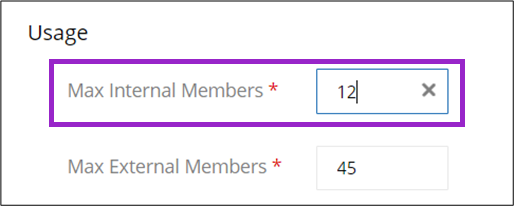
Delete the old value and replace it with the new number of licenses you need.
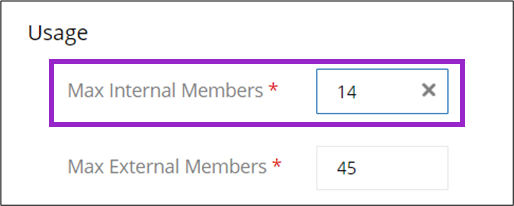
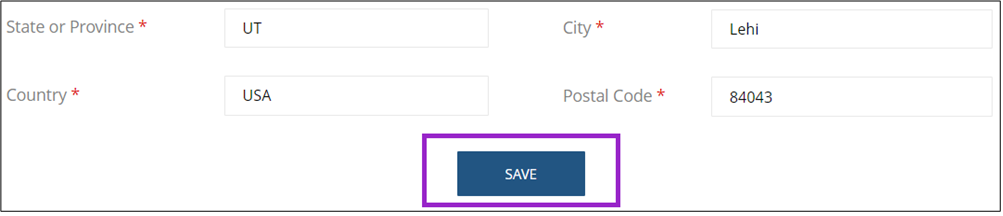
In this case, we updated our number of licenses from 12 to 14. Once you've input the correct number of licenses, scroll down to the bottom of the page and select Save.
Delete the old value and replace it with the new number of licenses you need.
In this case, we updated our number of licenses from 12 to 14. Once you've input the correct number of licenses, scroll down to the bottom of the page and select Save.
 NOTE: You cannot reduce the number of purchased user licenses but only increase them.
Important Points To Remember
Contact Support:
If you encounter any issues or need assistance with adding licenses, contact your NetDocuments account manager or support team.
Billing Implications:
Adding new licenses will result in additional charges.